In the field of Mac screen recording and video editing, ScreenFlow has long maintained a strong reputation. However, the reality is that it's not the perfect fit for everyone—some users find the price too high, others need more professional editing features, and some are looking for a lighter or cross-platform solution. As a result, many users have started searching for ScreenFlow alternative options. If you're also looking for a more suitable replacement, the guide below will help you quickly find the right direction.
Screen Recorder is often considered one of the most user-friendly ScreenFlow alternatives for users who want reliable recording without a steep learning curve. Unlike ScreenFlow, which primarily supports only the Mac system, it removes platform limitations, allowing users on different operating systems to enjoy a high-quality screen recording experience.
It allows users to record the full screen, selected regions, webcam footage, system sound, and microphone audio simultaneously. The software also includes real-time drawing tools, scheduled recording, and basic editing options.
Key features of Screen Recorder:
Here is how to record a screen on your Mac using this ScreenFlow alternative:
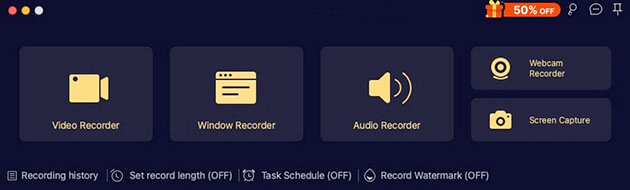
01Download, install, and open the Mac version of Screen Recorder on your MacBook. Then, click "Video Recorder" to begin.
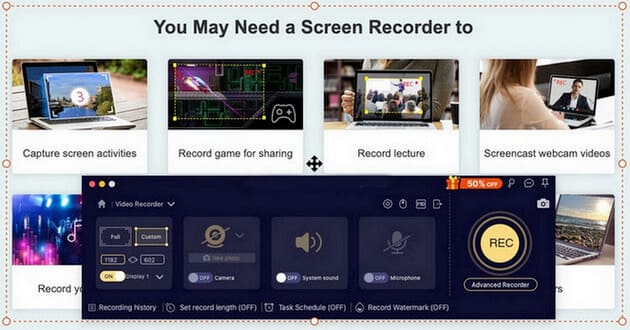
02Choose your recording area—Full or Custom—and enable System Sound or Microphone as needed.
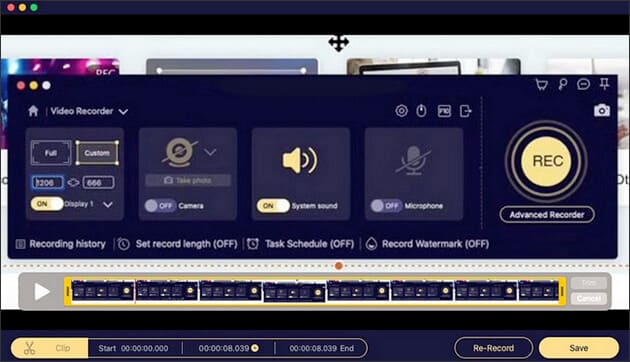
03Press "REC" to start recording. When finished, preview your video and trim it to your liking.
Pros:
- Cross-platform compatibility (works on both Windows and MacOS), a major advantage over Mac-only ScreenFlow.
- Intuitive and user-friendly interface, suitable for beginners with no technical experience.
- Multiple recording modes (full screen, custom region, window capture) to meet diverse needs.
- Flexible audio capture (system sound, microphone, or both) with clear sound quality.
- Built-in basic annotation and trimming tools, reducing the need for third-party editing software.
- Support scrolling capture and one-click screenshots, enhancing productivity.
Cons:
- Free trial version has heavy limitations (short recording time, watermarks), requiring upgrade to unlock full features.
- Lack advanced video editing features (e.g., multi-track editing, advanced transitions) compared to professional tools like ScreenFlow or Camtasia.
- May experience slight lag on low-end computers when recording high-resolution content.
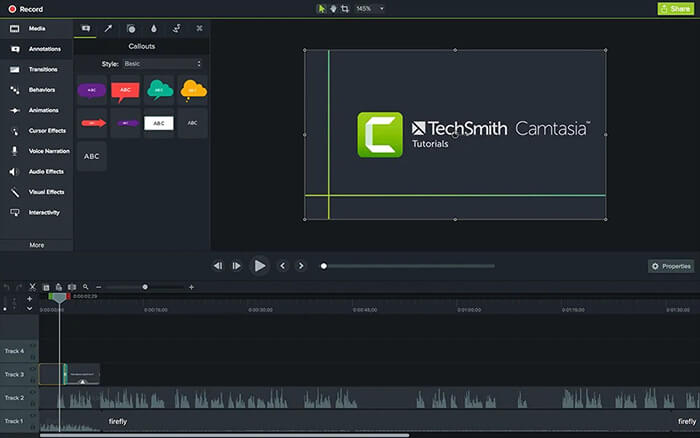
Camtasia is a professional-grade screen recording and video editing tool, widely recognized as a top ScreenFlow alternative for users who need advanced editing capabilities. Developed by TechSmith, it is compatible with both Windows and Mac, making it a more versatile option than ScreenFlow. Camtasia stands out for its seamless integration of screen recording and video editing features, allowing users to capture high-quality screen content and edit it into polished videos in one platform. It supports 4K screen recording, making it ideal for creating high-definition tutorials, product demos, and online courses.
The tool offers a wide range of advanced editing features, including multi-track editing, custom transitions, animations, text overlays, and green screen effects, enabling users to create professional-looking videos without needing additional software. Additionally, Camtasia provides a library of pre-built templates, assets, and effects, which can save users a lot of time in content creation. For business users and educators, it also supports interactive elements such as quizzes and hotspots, making it a powerful tool for creating engaging e-learning content.
Pros:
- Professional-grade screen recording and video editing in one platform, eliminating the need for separate tools.
- Cross-platform support (Windows and Mac), more flexible than Mac-only ScreenFlow.
- Support 4K recording and high-quality video output, suitable for professional content creation.
- Rich advanced editing features (multi-track editing, animations, green screen, transitions).
- Built-in library of templates, assets, and effects to speed up content creation.
- Support interactive elements (quizzes, hotspots) for e-learning and business training videos.
Cons:
- Higher price point compared to ScreenFlow and other basic screen recorders, which may be a barrier for individual users or small businesses.
- Steeper learning curve due to its advanced features, not ideal for complete beginners.
- Resource-intensive, requiring a powerful computer to run smoothly, especially when editing large videos.
- Exporting large videos can be time-consuming, even on high-performance devices.
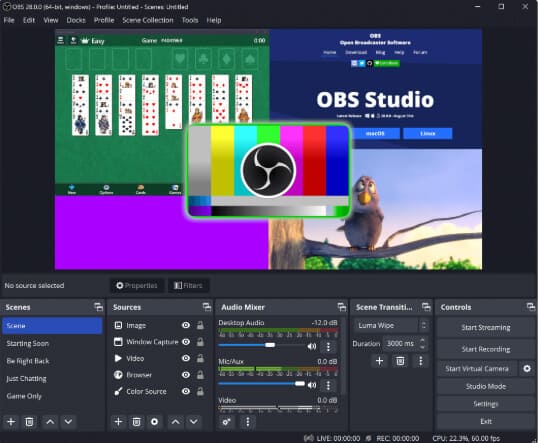
OBS Studio is a free, open-source screen recording and live streaming tool, making it an ideal ScreenFlow alternative for users who prioritize customization and cost-free solutions. It is compatible with Windows, Mac, and Linux, offering full cross-platform support.
Thanks to its high-performance recording and streaming capabilities, OBS Studio is popular among gamers, content creators, and live streamers. It supports full-screen, custom region, and window capture, with recording up to 8K resolution and frame rates up to 120fps. Users can create multiple scenes and switch between them seamlessly, making it perfect for live streaming and complex recordings, while also offering audio mixing, noise suppression, and multi-source audio management. Additionally, OBS has an active community and a wide range of plugins to enhance its functionality, including transitions, filters, and live chat integration.
Pros:
- Completely free and open-source, with no hidden fees or feature limitations.
- Cross-platform support (Windows, Mac, Linux), more versatile than ScreenFlow.
- High-performance recording (up to 8K resolution, 120fps) and live streaming capabilities.
- Advanced scene management and seamless scene switching, ideal for live streaming.
- Powerful audio mixing tools with noise suppression and multi-source support.
- Large community and a wide range of plugins/extensions to enhance functionality.
Cons:
- Complex interface, which can be overwhelming for beginners and requires time to learn.
- Lack built-in video editing features; users need to use third-party software to edit recorded videos.
- Resource-intensive, requiring a powerful CPU and GPU to run smoothly, especially for high-resolution recording/streaming.
- No official customer support; users rely on community forums for troubleshooting.
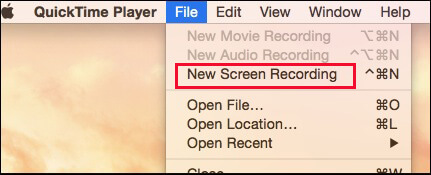
QuickTime Player is a built-in media player and screen recording tool for Mac devices, serving as a simple and free screenflow alternative for Mac users who need basic screen recording functionality. Pre-installed on all Mac computers, it eliminates the need for additional downloads or installations, making it the most convenient option for quick and simple screen recordings.
QuickTime Player supports basic screen recording features, including full-screen recording and custom region capture, and can also record webcam footage alongside the screen. It has a clean and intuitive interface, with just a few clicks needed to start recording, making it ideal for beginners and users who need to capture screen content quickly. Additionally, it offers basic video editing features, such as trimming clips, which is sufficient for simple edits. While it is not as feature-rich as ScreenFlow, it is a great option for users who do not need advanced features and want a free, hassle-free solution.
Pros:
- Free and pre-installed on all Mac devices, no need for downloads or purchases.
- Simple and intuitive interface, easy to use for beginners.
- Lightweight and runs smoothly on all Mac devices, with no resource strain.
- Support basic screen recording (full screen, custom region) and webcam recording.
- Built-in basic trimming tool for simple video edits.
Cons:
- Mac-only, same as ScreenFlow, no support for Windows or Linux users.
- Lack advanced features (e.g., annotation, audio editing, multi-track recording) compared to ScreenFlow.
- Cannot record system audio by default; users need to use third-party tools or workarounds to capture system sound.
- Limited output formats (only MOV), which may not be compatible with all platforms.
- No video editing features beyond basic trimming, requiring third-party software for advanced edits.
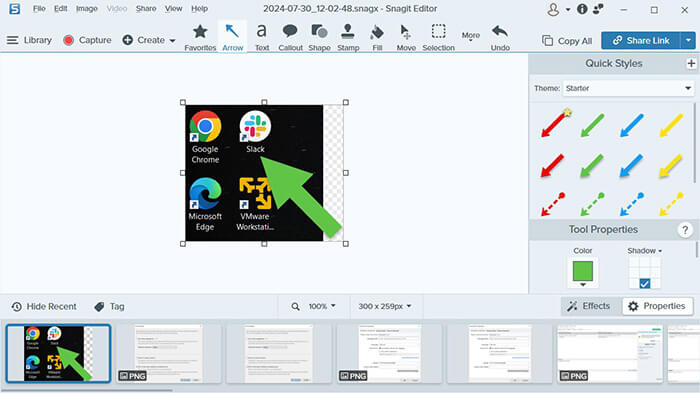
Also developed by TechSmith, Snagit is best known for its screenshot capabilities but also includes short video recording, making it a practical alternative to ScreenFlow. It excels at capturing screenshots and supports high-quality screen recording, including scrolling webpages, long documents, and custom regions, while allowing users to add text, arrows, shapes, and other annotations in real time—ideal for creating tutorials and demos.
Additionally, Snagit features a built-in image editor and video editor for enhancing screenshots, trimming videos, and adding annotations. It also supports OCR for extracting text, providing convenience for content creators and professional users.
Pros:
- All-in-one tool for screenshot and screen recording, more versatile than ScreenFlow in terms of image capture.
- Cross-platform support (Windows and Mac), eliminating ScreenFlow's Mac-only limitation.
- Advanced screenshot features (scrolling capture, OCR text extraction, custom region capture).
- Real-time annotation during recording, making it easy to highlight key points in tutorials.
- Built-in image and video editing tools, sufficient for basic to intermediate edits.
- Stable performance and high-quality output for both screenshots and recordings.
- Perfect for educational visual content.
Cons:
- Paid software with a one-time license fee, which may be expensive for individual users.
- Video editing features are not as advanced as ScreenFlow or Camtasia (e.g., no multi-track editing).
- No live streaming capabilities, unlike OBS Studio.
- Startup speed is slower than lightweight tools like QuickTime Player.
- Not suitable for long-duration recordings.
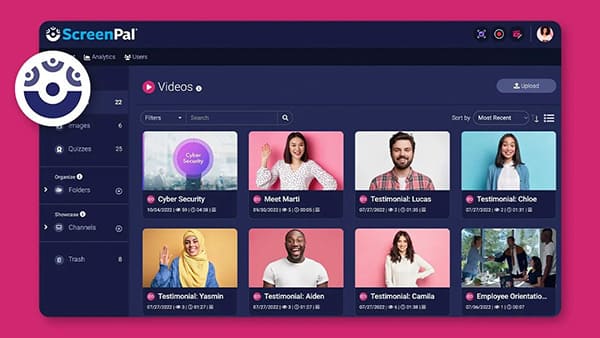
ScreenPal (formerly Screencast-O-Matic) is an easy-to-use screen recording and video editing tool, serving as an affordable ScreenFlow alternative for both individuals and teams. It supports Windows, Mac, and a web version, with an intuitive interface that lets users start recording quickly.
It offers full-screen, custom region, and webcam recording, while capturing both system sound and microphone audio. The free version provides basic features, while the paid version adds longer recording times, advanced editing, cloud storage, and team collaboration. Built-in templates and asset libraries make it easy for users to create professional-looking videos.
Pros:
- User-friendly interface, suitable for beginners and users with no technical experience.
- Cross-platform support (Windows, Mac, web-based), more versatile than ScreenFlow.
- Flexible pricing plans, including a free version with basic features (ideal for budget users).
- Support both screen and webcam recording, with clear audio capture.
- Built-in video editing tools and pre-built templates to speed up content creation.
- Cloud storage and team collaboration features (in paid plans) for easy sharing.
Cons:
- Free version has limitations (15-minute recording time, watermarks, no system audio recording).
- Web-based version requires an internet connection and may experience lag during long recordings.
- Advanced editing features are limited compared to ScreenFlow and Camtasia.
- Video output quality is not as high as professional tools (max 1080p in some plans).
- Desktop version may have occasional stability issues with large video files.
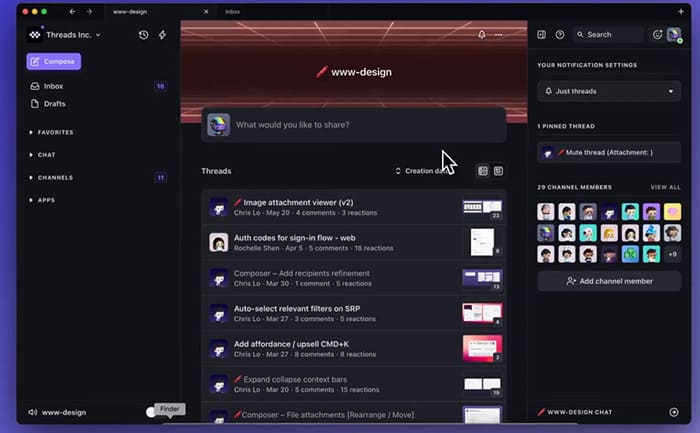
Screen Studio is a Mac-only screen recording tool and a sleek, efficient alternative to ScreenFlow. With a clean and intuitive interface and smooth recording performance, it's ideal for content creators who want to produce polished videos quickly.
It supports up to 4K screen recording and picture-in-picture webcam capture, with real-time editing features such as text overlays, annotations, and transitions to save post-production time. Advanced features like cursor highlighting, click effects, and keyboard shortcut visualization enhance the clarity of tutorial videos. Its lightweight design ensures smooth performance even on mid-range Mac devices, making it especially appealing for product demos, promotional videos, and social media content.
Pros:
- Sleek and intuitive interface, with a focus on user experience and aesthetics.
- High-quality 4K recording with smooth performance on Mac devices.
- Real-time editing features (annotations, text overlays, transitions) to save post-production time.
- Advanced cursor and keyboard visualization features, ideal for tutorial videos.
- Lightweight design, no resource strain on Mac devices.
- Seamless integration with Mac ecosystem (e.g., iCloud, QuickTime).
Cons:
- Mac-only, same as ScreenFlow, no support for Windows or Linux users.
- Paid software with a subscription model, which may be costly for long-term use.
- Limited advanced editing features compared to ScreenFlow (e.g., no multi-track editing).
- No live streaming capabilities, limiting its use for streamers.
- Smaller community and fewer plugins/extensions compared to more popular tools.
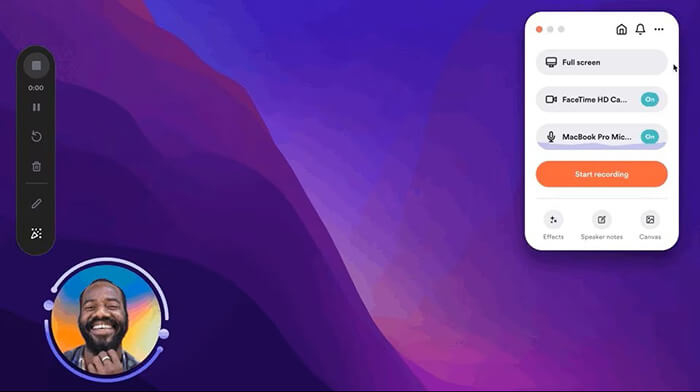
Loom is a cloud-based screen recording and video messaging tool, serving as a ScreenFlow alternative for users who prioritize collaboration and quick sharing. It supports Windows, Mac, iOS, Android, and browser extensions, and integrates seamlessly with popular work tools like Slack, Google Workspace, and Microsoft Teams.
Loom allows users to quickly record their screen, webcam, and audio, and instantly share videos via a link. Unlike ScreenFlow, which focuses on video editing, Loom emphasizes simplicity and sharing, making it ideal for business professionals, remote teams, and educators. It offers AI-powered features such as auto-generating titles, summaries, and transcripts, removing filler words, and enabling viewers to leave comments and emoji reactions at specific timestamps, facilitating collaboration and real-time feedback.
Pros:
- Cross-platform support (Windows, Mac, mobile, browser extension), highly versatile.
- Cloud-based storage, allowing access to recordings from any device.
- Instant sharing via link, no need to export and upload videos manually.
- AI-powered features (auto-transcripts, summary generation, filler word removal) to enhance productivity.
- Collaboration features (viewer comments, emoji reactions) for team communication.
- Free version available with basic features, suitable for individual users.
Cons:
- Limited video editing features compared to ScreenFlow; not ideal for professional video production.
- Free version has limitations (5-minute recording time, watermarks, limited storage).
- Rely on an internet connection for recording and sharing; no offline recording in the free version.
- Video output quality is lower than professional tools (max 1080p in paid plans).
- No advanced features like green screen, multi-track editing, or custom transitions.
Choosing the right ScreenFlow alternative depends on your specific needs, budget, and technical skills. Each tool reviewed in this article has its own strengths and weaknesses, catering to different user groups.
If you are looking for a versatile, user-friendly, and cross-platform tool that balances performance and affordability, Screen Recorder is an excellent choice. Whether you are a beginner, an educator, or a business professional, Screen Recorder can meet your everyday screen recording needs.
Related Articles:
Comprehensive Review: 7 Best Screen Recorders for Android
10 Amazing MP4 Screen Recorder Options: Record MP4 Videos Easily
Ultimate Guide to Screen Recorders for Windows: 8 Best Tools Inside!
A Comprehensive AZ Screen Recorder Review and 4 Best Alternatives






 Free Download for Mac
 Free Download for PC


