TL;DR: If your iPhone screen is frozen or unresponsive, you can try several solutions to restore it. This guide explains 4 ways to reset a frozen iPhone, including force restarting, using recovery options, remote erasing, and repairing system issues with iOS System Recovery. Among them, iOS System Recovery provides a simple way to fix iPhone freezes and other system problems while minimizing the risk of data loss.
Is your iPhone screen frozen, stuck, or completely unresponsive? This issue can happen because of system crashes, failed updates, app errors, or insufficient storage. If you are wondering how to reset iPhone when screen is frozen, there are several solutions you can try. This guide explains 4 ways to reset a frozen iPhone. Let's look at them one by one.

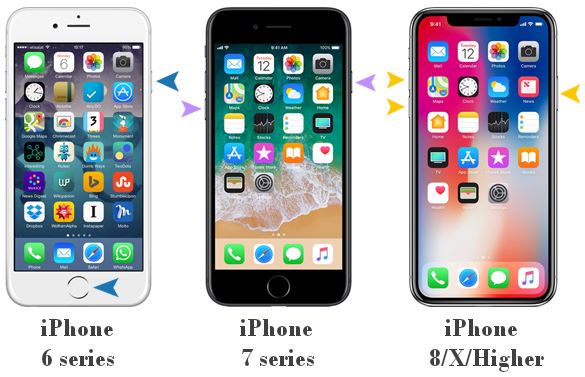
A hard reset is the fastest way to fix an iPhone that suddenly freezes or stops responding. Unlike a factory reset, a force restart does not erase your data, including photos, messages, contacts, and apps. It simply forces your iPhone to shut down and restart, which can resolve temporary iOS glitches. The force restart method varies depending on the iPhone model.
How to do a hard reset on iPhone when frozen?
For iPhone 8 and Later:
For iPhone 7 and iPhone 7 Plus:
For iPhone 6s or Earlier:
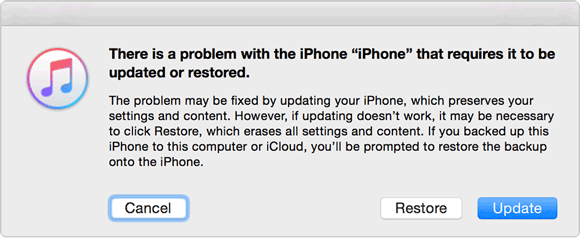
When a force restart cannot fix the problem, Recovery Mode is another official way to reset a frozen iPhone. This method allows your computer to reinstall iOS and repair serious software issues, such as failed updates, corrupted system files, or an iPhone stuck on the Apple logo.
Before using Recovery Mode, make sure you understand that restoring your iPhone will erase all data on the device. If you have an available backup, you can restore your files after the reset process is complete. (How to back up iPhone?)
Here is how to reset your iPhone 17 when the screen is frozen:
Step 1. Connect your iPhone to a computer using a USB cable.
Step 2. Open iTunes on Windows or Finder on Mac.
Step 3. Enter Recovery Mode based on your iPhone model:
Step 4. When the computer detects your iPhone in Recovery Mode, select "Restore".
Step 5. Wait for the computer to download the latest iOS firmware and complete the restore process.
After the process is complete, your iPhone will return to factory settings. You can set it up again or restore your data from a backup.
If your iPhone screen is frozen and you cannot access the device, iCloud Find My provides a remote way to erase and reset your iPhone. This method is especially useful when the touchscreen is completely unresponsive, the device cannot be unlocked, or you do not have access to a computer. However, before using this method, your iPhone must also have Find My iPhone enabled and be connected to your Apple ID.
Here is how to reset your iPhone when the screen is unresponsive via iCloud Find My:
Step 1. Access the iCloud website on your computer or another device, sign in with your Apple ID, and open "Find My".
Step 2. Sign in with the Apple ID linked to your frozen iPhone.
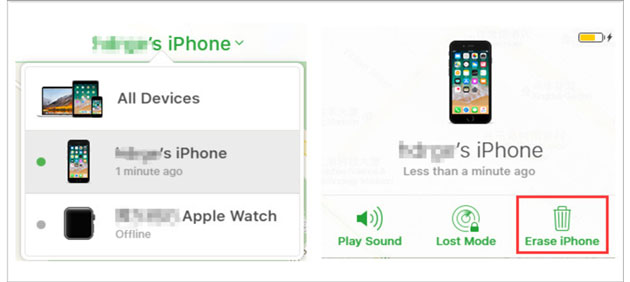
Step 3. Select your iPhone from the device list.
Step 4. Choose the "Erase iPhone" option.
Step 5. Confirm the action to remove all data and settings.
Step 6. Wait for the erase process to complete.
Step 7. Set up your iPhone as a new device or restore it from a backup.
When traditional troubleshooting methods fail, using an iOS system repair tool can provide a simpler solution. iOS System Recovery is designed to fix various iPhone system issues without complicated steps. It can resolve problems such as frozen screens, black screens, iPhones stuck on the Apple logo, recovery mode loops, and system crashes.
Compared with restoring through iTunes or Finder, this tool offers a more intuitive interface, provides multiple repair modes based on different situations, and helps reduce the risk of data loss.
Key features of iOS System Recovery:
Here is how to reset an iPhone when the screen is frozen without data loss:
01Download and install the program on your computer, then open it and select "iOS System Recovery".
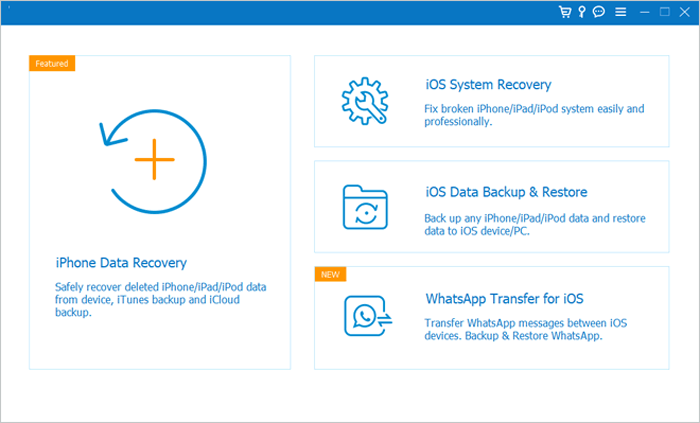
02Connect your frozen iPhone to the computer with a USB cable. Once detected, click "Start" to begin the repair process.
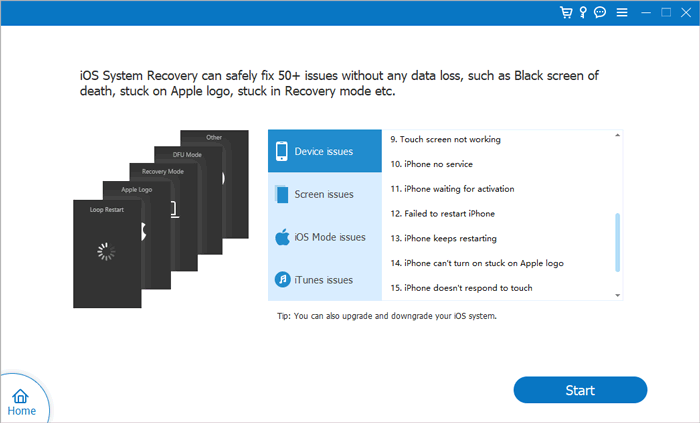
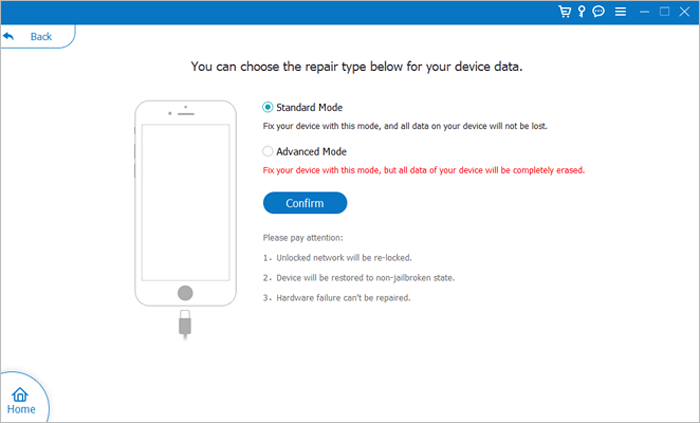
03Select "Standard Mode" to fix the frozen iPhone without erasing data, then click "Confirm".
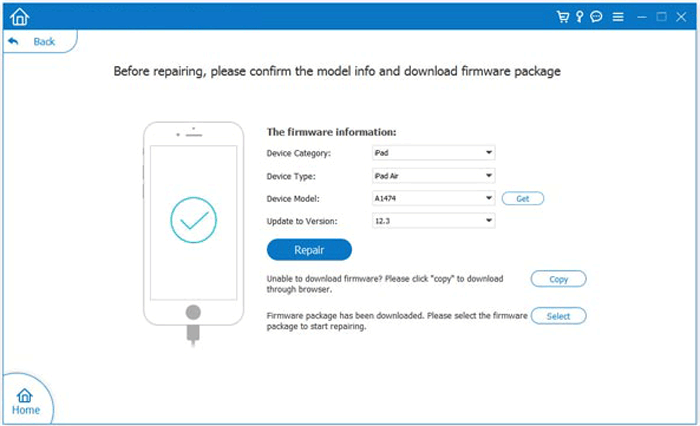
04Check your iPhone information and click "Repair" to download the required firmware package. Wait for the repair process to complete. Your iPhone will restart automatically once the system issues are fixed.
If you want to know how to reset an iPhone when the screen is frozen, the best method depends on your situation. A hard reset is the quickest solution for temporary freezes, while Recovery Mode and iCloud Find My are suitable for more serious problems but may erase your data.
For users who need a simpler way to fix an unresponsive iPhone, iOS System Recovery is a reliable choice. It can repair many iOS system issues, including frozen screens, startup failures, and software errors, while providing an easier recovery process compared with traditional methods.
Related Articles:
How to Fix iPhone Touch Screen Not Responding? - 7 Practical Ways
How to Unfreeze iPhone 17/16/15 Screen Swiftly? (8 Effective Tricks)
5 Ways to Fix the iPhone Frozen on Lock Screen Issue with Ease
How to Fix an iPhone Stuck on Loading Screen Quickly & Safely?




 Free Download for PC
  Free Download for Mac


