"My question is, what to do when a wheel located next to "Install Now" is spinning? It has been spinning for nearly 2 hours. Is it trying to install Software Update iOS 13.5.1 on an iPhone 11? I just transferred information from an iPhone 7 and everything ran smoothly until the software update."
- from Apple Community
When updating your system, it's quite common to see "Install Now" get stuck and not respond. This not only affects the update progress but can also raise concerns about data safety. So, why is iPhone stuck on "Install Now", and how can you fix it quickly? This article will walk you through the causes and solutions step by step.
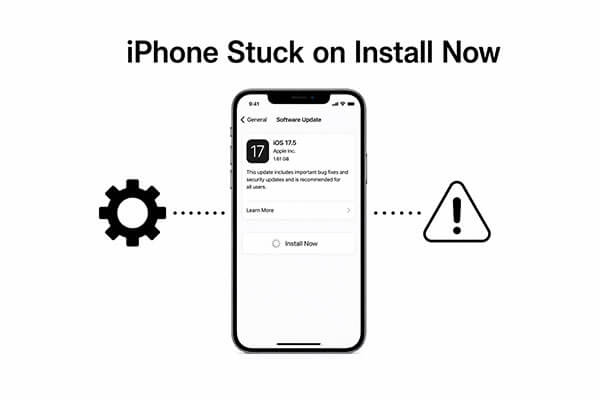
Before jumping into solutions, it's important to understand why is your iPhone stuck on "Install Now" screen issue occurs. Identifying the root cause can help you apply the right fix more efficiently. Common causes include:
1. Unstable Network Connection
iOS updates require a continuous connection to Apple's servers. If your Wi-Fi is unstable or too slow, the installation can easily get stuck.
2. Insufficient Storage Space
System updates require a certain amount of available space. If your iPhone doesn't have enough storage, it may remain stuck on the installation screen.
3. Corrupted Update File
If the download is interrupted or encounters errors, the update package may become corrupted, preventing it from installing properly.
4. System Bugs or Compatibility Issues
Some iOS versions may contain bugs or compatibility problems that cause the device to freeze during the installation stage.
5. Low Battery or Device Overheating
If the battery level is too low or the device overheats during the update process, it may also cause the installation to fail.
Now that you know the possible reasons, let's move on to practical solutions. If your iPhone is stuck on "Install Now" iOS 26/18/17, follow these methods in order to resolve the issue effectively.
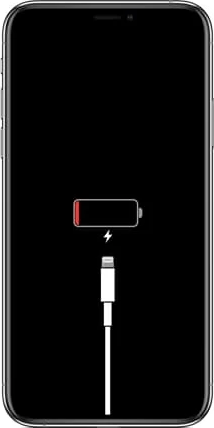
One of the most overlooked reasons behind an iPhone stuck on the Install Now screen is a low battery. iOS requires sufficient power to complete installation, and the process may pause automatically if the battery is too low.
Therefore, make sure your device has at least 50% battery, or keep it connected to a charger during the update process. (iPhone overheating when charging?)
A stable internet connection is crucial during updates. If your iPhone software update is stuck on Install Now, a weak or unstable network may be the cause.
Step 1. Go to "Settings" > "Wi-Fi" and make sure you're connected to a stable network.
Step 2. Turn Wi-Fi off and back on, or switch to a more reliable network.
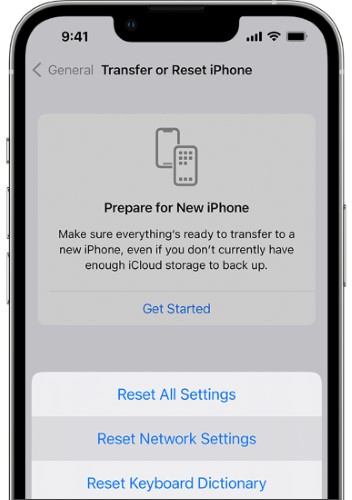
Step 3. If the issue persists, go to "Settings" > "General" > "Transfer or Reset iPhone" > "Reset" > "Reset Network Settings".
When the system experiences temporary lag or app conflicts, force restarting can quickly clear the cache and reload the system, restoring normal operation. This is one of the common methods to resolve freezing issues. To force restart the iPhone, follow these steps:

iOS updates require sufficient storage space to download, unpack, and install system files. If there isn't enough space, your iPhone may get stuck on the "Install Now" screen. Therefore, clearing storage space is essential.
To free up iPhone space, follow the steps below:
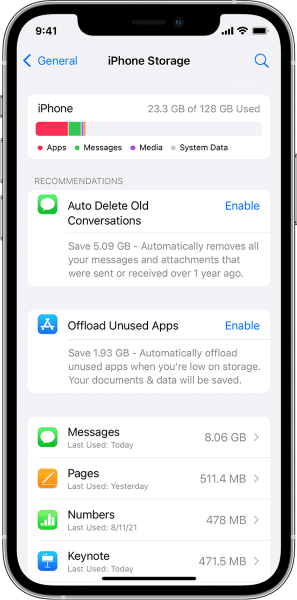
Step 1. Go to "Settings" > "General" and tap on "iPhone Storage" to check your available space.
Step 2. Delete unnecessary apps, photos, or videos to free up at least 5GB of space.
If the update file itself is corrupted or the download is incomplete, it cannot be installed properly even if the conditions are met. In this case, the most direct and effective solution is to delete the old file and download it again.
Here is how to do it:
Step 1. Go to "Settings" > "General" > "iPhone Storage". (iPhone storage not loading?)
Step 2. Locate the iOS update file and tap "Delete Update".
Step 3. Return to "Software Update", then download and install the update again.
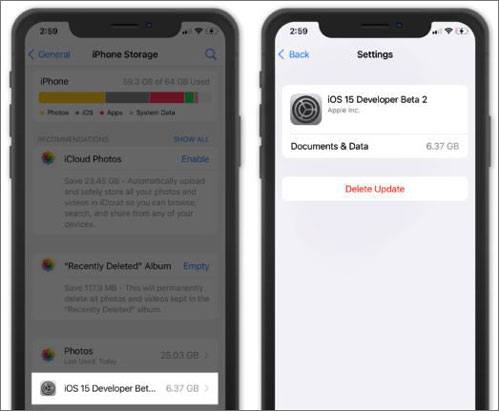
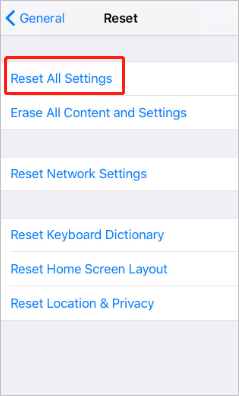
When there is a conflict in system settings (such as abnormal update parameters), it may cause the iPhone software update to get stuck on "Install Now". Resetting all settings can restore the default system configuration without deleting personal data.
Here are the steps:
Step 1. Go to "Settings" > "General".
Step 2. Scroll down and tap "Transfer or Reset iPhone", then select "Reset".
Step 3. Tap "Reset All Settings", enter your password, and your iPhone will restart shortly.
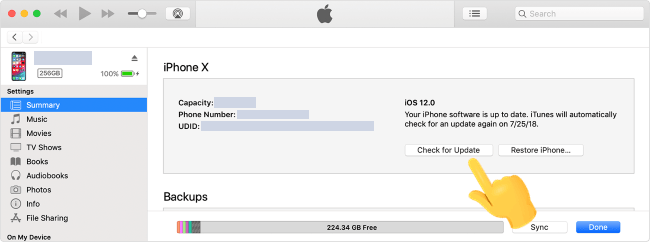
If the wireless update (OTA) keeps failing, you can try updating via a computer. This method is more stable than using the phone and helps avoid issues caused by network interruptions.
Here is how to update an iPhone using iTunes:
Step 1. Connect your iPhone to your computer via USB cable.
Step 2. Open iTunes (or Finder for macOS Catalina or later).
Step 3. Select your iPhone when it appears.
Step 4. In iTunes, go to the "Summary" tab and click "Check for Update".
Step 5. If an update is available, click "Download and Update".
Step 6. Follow the on-screen instructions and enter your passcode if prompted.
Step 7. Wait for the update to finish, and your iPhone will restart once the latest iOS version is installed.
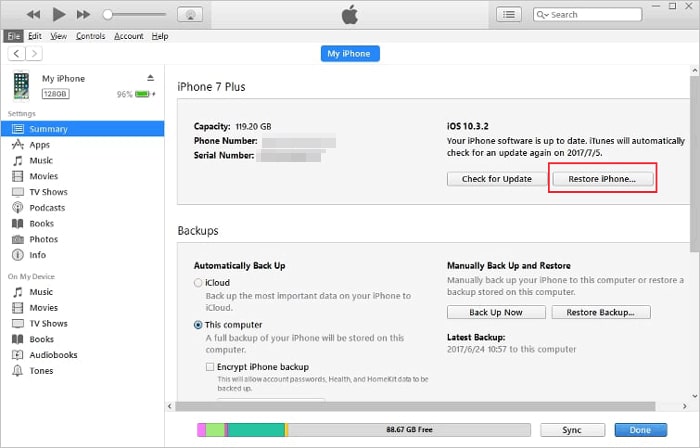
When all else fails, you can restore the device using iTunes. This method will reinstall the system and fix deeper issues.
Here is how to do it:
Step 1. Connect your iPhone to your computer with a USB cable.
Step 2. Open iTunes (on Windows or macOS Mojave and earlier) or Finder (macOS Catalina or later).
Step 3. Select your iPhone when it appears.
Step 4. Click "Restore iPhone", then confirm by clicking "Restore" again to proceed.
When all other methods fail, restoring to factory settings is the last resort. This will completely remove system errors but will erase all data, so make sure to back up your iPhone beforehand.
Here is how to factory reset your iPhone:
Step 1. Go to "Settings", then tap "General".
Step 2. Scroll to the bottom and select "Reset".
Step 3. To factory reset, tap "Erase All Content and Settings".
Step 4. Enter your passcode and confirm by tapping "Erase".

If you don't want to try the methods above one by one, or if you're concerned about the complexity and potential data loss, using a professional tool would be a more efficient choice. iOS System Recovery is a software specifically designed to fix iOS system issues. It can resolve various system glitches without deleting data.
Whether your device is stuck on "Install Now", showing the white Apple logo, in recovery mode, or facing update failures, this tool offers a one-stop solution, making it ideal for regular users.
The highlights of iOS System Recovery:
Here is how to fix a new iPhone stuck on Install Now iOS 18/26 using iOS System Recovery:
01Download and install the software on your computer. It will automatically launch after installation.
02Connect your iOS device to the computer using a working USB cable. Select "iOS System Recovery" and tap "Start" on the next screen.

03Choose "Standard Mode" or "Advanced Mode", then tap "Confirm" to proceed.

04Verify your device information and tap "Repair" to begin the process. Wait for the process to complete, and your device will be restored to normal.

Dealing with an iPhone stuck on the "Install Now" problem can be frustrating, especially when you just want to complete an update. Fortunately, most issues can be resolved with simple troubleshooting steps. If basic fixes don't work, using iOS System Recovery is the most efficient way to fix the issue without losing data. It saves time, reduces risk, and gets your iPhone back to normal quickly.
Related Articles:
[Solved] How to Fix iPhone Taking Forever to Update iOS 18/26?
New iPhone 17 Stuck on Software Update? Here's How to Troubleshoot
iPhone Stuck on Preparing Update iOS 26/18? 9 Fixes That Work Fast
[100% Work] How to Fix iOS 26 Unable to Check for Update on iPhone/iPad?




 Free Download for PC
  Free Download for Mac


